

AI-driven Banking Insights
Get a clearer view of your finances with AI.
At First Internet Bank, we’re always looking for smarter ways to help you manage your money. With the beta version of our Model Context Protocol (MCP), eligible personal customers can choose to securely connect their First Internet Bank checking, savings and money market accounts to supported AI assistants like Anthropic’s Claude* and OpenAI’s ChatGPT* for read-only access.
Ask questions about your account data and get personalized insights right inside the AI assistant you already use. No spreadsheets. No digging through transactions. No account access or control. Just a faster, smarter way to understand your finances, powered by your real account information.
*Available now for Claude Pro, Max, Team and Enterprise plans, as well as ChatGPT Pro, Business and Enterprise plans.
Get Started Today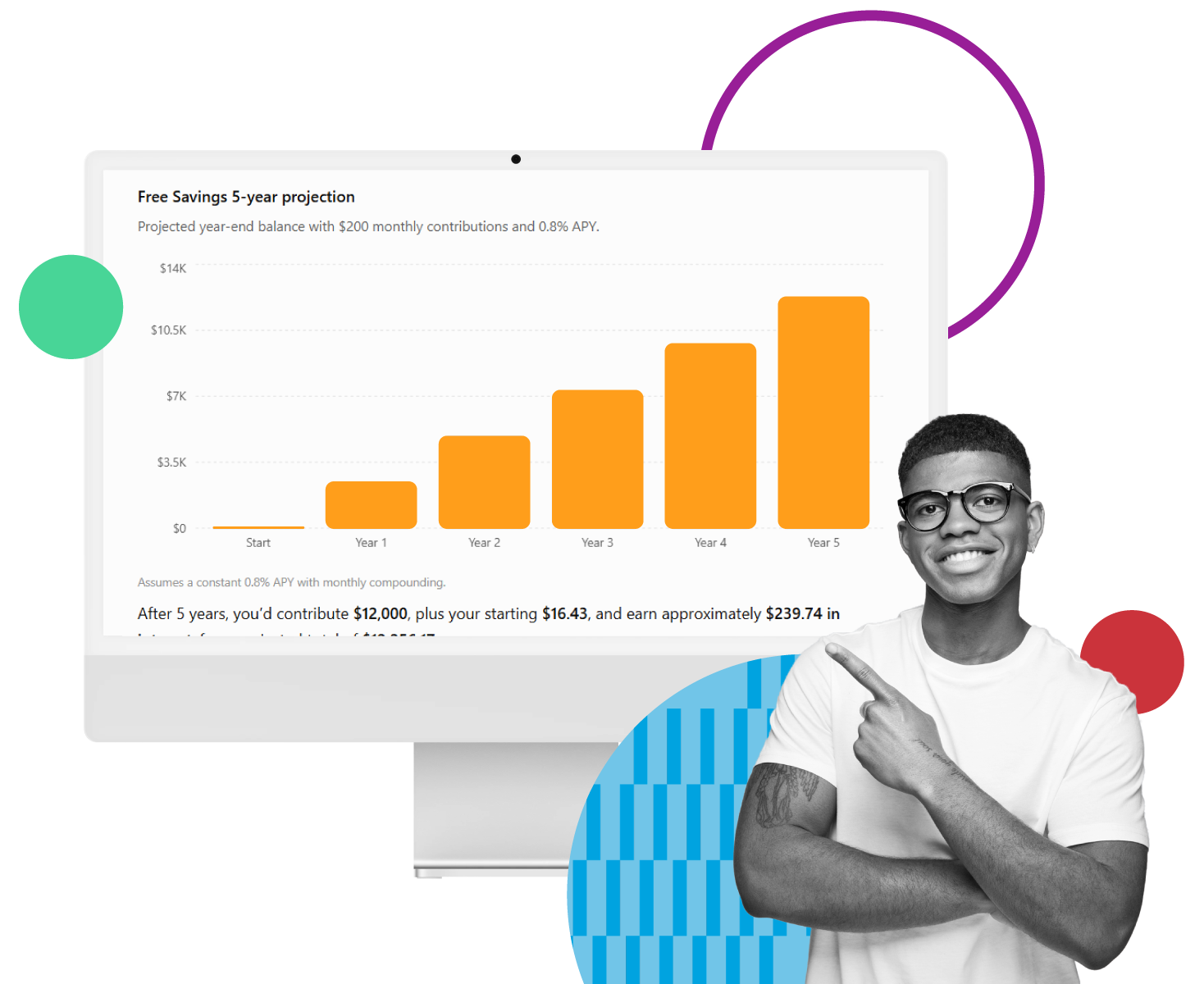

What is MCP?
MCP is a secure connection you choose to establish between your First Internet Bank accounts and supported AI assistants like Claude and ChatGPT. It gives the AI assistant access only to approved information, such as balances or transaction history, so it can help answer financial questions based on your actual account activity.
There’s no new app to manage. No extra sign in to learn. And you do not share your First Internet Bank online banking username or password with Claude or ChatGPT. MCP works through a permission-based connection that you control.
Want to learn more? Read our FAQsA clearer way to understand your finances.
Financial questions do not always show up neatly at the end of the month. Sometimes you want to know if a payment cleared, whether your spending has changed or how much progress you’ve made toward a savings goal.
MCP helps make those answers easier to find. By connecting approved account information from your First Internet Bank personal checking, personal savings or money market account to a supported AI assistant, you can get a clearer view of your spending, savings and account activity in plain language. Instead of searching through transactions or piecing together information from multiple places, you can ask a question and keep moving.
Ask questions like:
- Do I have enough cash on hand to cover upcoming expenses?
- How has my spending changed month over month?
- How much have I saved so far this year?
- Has a recent payment cleared?
- What recurring charges should I review?
- Where might I have room to save?
What can you do with MCP?
With MCP, your approved account information can work harder for you. You can use supported AI assistants to help summarize activity, identify spending patterns and make account information easier to understand. MCP is not designed to replace your judgment. It is designed to make the information behind your decisions easier to access and understand.
Spend less time organizing data and more time using it to make informed decisions
Ask straightforward questions about cash flow, spending, and account activity
Generate summaries and reports in minutes, not days
See trends, patterns, and changes as they develop over time

Read-only access. Real control.
You decide what data the AI tool can review, such as balances or transaction history. Permissions can be updated or turned off at any time.
MCP connections are currently read-only. That means supported AI assistants can analyze approved information, but they cannot move money, make transfers, complete transactions or change your account settings. The connection allows approved data to be securely read for analysis, then closes when you’re done.
Built for everyday financial decisions.
Whether you’re managing a monthly budget, tracking savings goals or trying to understand where your money goes, MCP can help bring your financial picture into focus. It gives supported AI tools access to approved account information, so the insights you receive are grounded in your actual account data, not assumptions.
That can make everyday money questions easier to answer, from “What changed this month?” to “Am I on track?” to “What should I review before making a larger purchase?”
Get Started TodayExploring what’s next, together.
You’re among the first to try this new capability, and that’s not something we take lightly. We’re excited to explore what AI can unlock when paired with real financial insight—while staying clear-eyed about its limits.
AI is powerful, but it isn’t infallible. As part of getting started, you’ll be asked to review and acknowledge the Beta Agreement. That step ensures shared expectations and transparency as this experience continues to evolve.
Get Started Today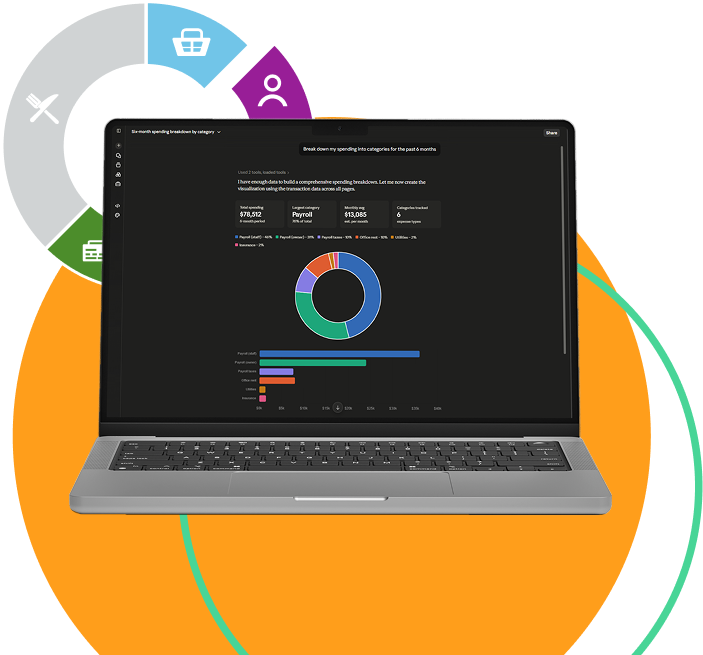
Frequently asked questions
Setup instructions for ChatGPT – Within your First Internet Bank online banking, go to Settings > AI Connectors and copy your personal link.
Enable developer mode
1. Open chatgpt.com in a web browser or use the ChatGPT desktop app.
2. Go to Settings > Apps > Advanced Settings, and turn on Developer mode.
Create connector
3. Go back to Apps and select Create App.
4. Enter First Internet Bank in the Name field.
5. Paste your personal link (copied above) into the MCP Server URL field.
6. Ensure Authentication is set to OAuth.
7. Select the confirmation checkbox and then Create.
Authenticate
8. A new window will open to your online banking login screen. Sign in as usual.
9. Review the terms of use and select Confirm.
10. Select Authorize to grant ChatGPT permission to access your financial data.
Start using the connector
11. Start a new chat and ask your question, making sure to mention the connector (e.g., “Can you show me my account information? I connected my account to ChatGPT via connectors”). Select Confirm on the access prompts that appear.
Troubleshooting
- You will need to re-authenticate every 7 days.
- ChatGPT: Navigate to Settings > Apps > First Internet Bank of Indiana AI Connector > “Connect”
- Only account signers / admins can create new custom connectors on team plans.
- Each team member will need to authenticate individually with their banking login to access the connector.
Setup instructions for Claude – Within your First Internet Bank online banking, go to Settings > AI Connectors and copy your personal link.
Add connector in Claude
1. Open Claude.ai in a web browser or use the Claude desktop app.
2. Go to Settings > Connectors > Add Custom Connector.
3. Enter First Internet Bank in the Name field.
4. Paste your personal link (copied above) into the URL field.
5. Select Add.
Authenticate
6. In the Connectors list, find First internet Bank and select Connect.
7. A new window will open to your online banking login screen. Sign in as usual.
8. Review the permissions and select Authorize to grant Claude access to your financial data.
Start using the connector
9. Start a new chat and ask a question (e.g., “Can you show me my account information?”). Select Allow always on the access prompts.
Troubleshooting
- You will need to re-authenticate every 7 days.
- Claude: Navigate to Claude Settings > Connectors > “Connect”
- Only account signers / admins can create new custom connectors on team plans.
- Each team member will need to authenticate individually with their banking login to access the connector.
First Internet Bank’s MCP connection creates a secure, read-only link between your First Internet Bank accounts and AI assistants like Claude and ChatGPT, so those assistants can analyze your account information and answer your questions directly inside the AI tool, without a separate app or sign in.
Through this MCP connection, the AI assistant can only access the specific First Internet Bank account data you approve, such as balances and transaction history, for the purpose of reading and analyzing that information.
The MCP connection is strictly read-only, which means the AI assistant can review and analyze your First Internet Bank account data but cannot move money, initiate payments or make any changes to your accounts.
No, you do not need to export spreadsheets or upload reports, because the MCP connection allows the AI assistant to securely read your First Internet Bank account information directly, so it can generate summaries and insights without manual exports.
You can ask practical questions about spending, savings, recurring activity, balances, deposits and account changes, depending on the information you approve.
Yes, you decide which First Internet Bank account data the AI assistant can review, and you can update or turn off those permissions at any time if you no longer want the AI assistant to access that information.
No, you never share your First Internet Bank sign in credentials with Claude or ChatGPT, because the MCP connection is designed to let the AI assistant read approved data without exposing your online banking username or password.
This MCP experience is currently available for Claude Pro, Claude Max, Claude Team, and Claude Enterprise plans, as well as ChatGPT Pro, ChatGPT Business, and ChatGPT Enterprise plans.
Because this MCP connection is in “Beta”, you are among the first to use it, and you will be asked to review and acknowledge a Beta Agreement that explains the experience, your responsibilities, and First Internet Bank’s responsibilities so expectations are clear as the service continues to evolve
Already utilizing the beta version of our Model Context Protocol (MCP), but you need technical support? Check out our MCP Technical FAQs.
Read Our Technical FAQsBeta Agreement
By providing your sign-in credentials and proceeding, you are authorizing a third-party service to access your First Internet Bank account(s). First Internet Bank makes no warranty and has no liability for the third-party service or any access to or transactions it conducts on your account(s). As provided in the Online Banking Access Agreement applicable to your account(s), you are liable for any transactions initiated by a user who accesses your account using your sign-in credentials, including third-party services, and First Internet Bank has no liability for and may act on instructions provided by anyone who has accessed your account using your sign-in credentials, including any third-party service. If you do not want to authorize the third-party service to access your account(s), do not proceed. If you want to revoke authorization and are unable to do so directly with the third-party service, contact First Internet Bank at [email protected] or 1-888-873-3424.